
If you’re still relying exclusively on cron for scheduling tasks on Linux, it’s time to explore systemd timers — a more powerful, flexible, and observable alternative that’s been quietly becoming the standard across modern distributions. In this guide, we’ll walk through everything you need to know to replace your crontab entries with systemd timers, complete with practical examples you can use today.
Why Systemd Timers Over Cron?
Cron has served us well for decades, but systemd timers offer several compelling advantages:
- Built-in logging — Every timer execution is captured in the journal. No more redirecting output to log files.
- Dependency management — Timers can depend on network availability, mount points, or other services.
- Missed run handling — If the system was off when a timer should have fired,
Persistent=truecatches up automatically. - Accurate monotonic timers — Schedule tasks relative to boot time, not just wall-clock time.
- Resource controls — Apply CPU, memory, and I/O limits to scheduled tasks using cgroups.
Anatomy of a Systemd Timer
A systemd timer requires two unit files: a .timer file (the schedule) and a .service file (the task). They must share the same base name.
The Service Unit
Create /etc/systemd/system/backup-db.service:
[Unit]
Description=Database backup script
Wants=network-online.target
After=network-online.target

[Service]
Type=oneshot
ExecStart=/usr/local/bin/backup-db.sh
User=backup
Group=backup
MemoryMax=512M
CPUQuota=50%
StandardOutput=journal
StandardError=journal
Notice we set Type=oneshot — this tells systemd the process runs once and exits, which is exactly what scheduled tasks do. We’ve also added resource limits that cron simply can’t provide.
The Timer Unit
Create /etc/systemd/system/backup-db.timer:
[Unit]
Description=Run database backup daily at 2 AM

[Timer]
OnCalendar=*-*-* 02:00:00
Persistent=true
RandomizedDelaySec=900
AccuracySec=1s

[Install]
WantedBy=timers.target
Let’s break down the key directives:
OnCalendar— The schedule expression (similar to cron but more readable).Persistent=true— If the machine was off at 2 AM, run the backup as soon as it boots.RandomizedDelaySec=900— Add up to 15 minutes of random delay to prevent thundering herd problems on clusters.AccuracySec=1s— How precisely to honor the schedule (lower values use more CPU for wake-ups).
Calendar Expression Cheat Sheet
Systemd’s OnCalendar syntax is more readable than cron’s five-field format. Here are common patterns:
# Every day at midnight
OnCalendar=daily

# Every Monday at 9 AM
OnCalendar=Mon *-*-* 09:00:00

# Every 6 hours
OnCalendar=*-*-* 00/6:00:00

# First day of every month at 3 AM
OnCalendar=*-*-01 03:00:00

# Every weekday at 8:30 AM
OnCalendar=Mon..Fri *-*-* 08:30:00

# Every 15 minutes
OnCalendar=*-*-* *:00/15:00
You can validate any expression with systemd-analyze calendar:
$ systemd-analyze calendar "Mon..Fri *-*-* 08:30:00"
  Original form: Mon..Fri *-*-* 08:30:00
Normalized form: Mon..Fri *-*-* 08:30:00
    Next elapse: Mon 2026-04-13 08:30:00 IST
       (in UTC): Mon 2026-04-13 03:00:00 UTC
       From now: 1 day left
Monotonic Timers: Schedule Relative to Events
Unlike cron, systemd supports monotonic timers that fire relative to system events:
[Timer]
# 15 minutes after boot
OnBootSec=15min

# 1 hour after the timer was last activated
OnUnitActiveSec=1h

# 30 minutes after the service last finished
OnUnitInactiveSec=30min
This is incredibly useful for tasks like “check for updates 10 minutes after boot” or “run a health check every hour after the last one completes.”
Managing Timers: Essential Commands
Here are the commands you’ll use daily:
# Enable and start a timer
sudo systemctl enable --now backup-db.timer

# List all active timers
systemctl list-timers --all

# Check timer status
systemctl status backup-db.timer

# Manually trigger the associated service
sudo systemctl start backup-db.service

# View logs from the last run
journalctl -u backup-db.service -n 50 --no-pager

# View logs since last boot
journalctl -u backup-db.service -b

# Disable a timer
sudo systemctl disable --now backup-db.timer
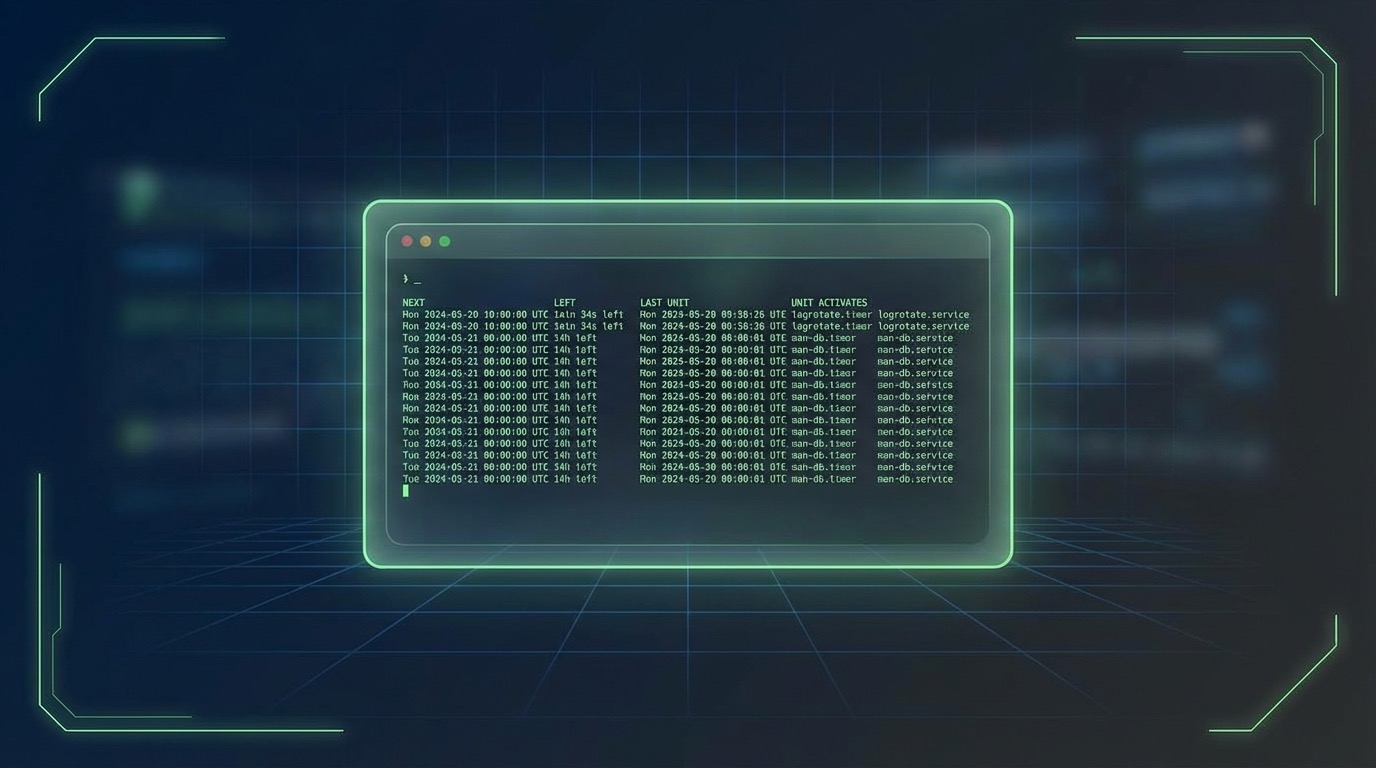
The list-timers command is a game-changer — it shows you exactly when each timer last fired and when it will fire next:
$ systemctl list-timers
NEXT                        LEFT     LAST                        PASSED   UNIT
Sat 2026-04-12 02:00:00 IST 24h left Fri 2026-04-11 02:00:12 IST 23h ago  backup-db.timer
Sat 2026-04-12 00:00:00 IST 22h left Fri 2026-04-11 00:00:00 IST 1h ago   logrotate.timer
User-Level Timers (No Root Required)
You don’t need root to create timers. Place unit files in ~/.config/systemd/user/ and manage them with the --user flag:
# Create user timer directory
mkdir -p ~/.config/systemd/user

# Create a simple reminder timer
cat > ~/.config/systemd/user/standup-reminder.service << EOF
[Unit]
Description=Stand up and stretch reminder

[Service]
Type=oneshot
ExecStart=/usr/bin/notify-send "Time to stretch!" "You've been sitting for an hour."
EOF

cat > ~/.config/systemd/user/standup-reminder.timer << EOF
[Unit]
Description=Hourly stretch reminder

[Timer]
OnUnitActiveSec=1h
OnBootSec=1h

[Install]
WantedBy=timers.target
EOF

# Enable it
systemctl --user enable --now standup-reminder.timer
systemctl --user list-timers
Practical Example: Log Cleanup with Email Notification
Here's a real-world example that cleans old logs and sends an email summary:
#!/bin/bash
# /usr/local/bin/cleanup-logs.sh

LOG_DIR="/var/log/myapp"
DAYS=30
DELETED=0

while IFS= read -r -d '' file; do
    rm -f "$file"
    ((DELETED++))
done < <(find "$LOG_DIR" -name "*.log" -mtime +"$DAYS" -print0)

echo "Cleaned up $DELETED log files older than $DAYS days from $LOG_DIR"

if [ "$DELETED" -gt 0 ]; then
    echo "Deleted $DELETED old log files" | \
      mail -s "Log Cleanup Report - $(hostname)" admin@example.com
fi
The corresponding service with security hardening:
[Unit]
Description=Clean old application logs

[Service]
Type=oneshot
ExecStart=/usr/local/bin/cleanup-logs.sh
User=root
ProtectHome=true
ProtectSystem=strict
ReadWritePaths=/var/log/myapp
NoNewPrivileges=true
PrivateTmp=true
Notice the security directives — ProtectSystem=strict makes the entire filesystem read-only except paths you explicitly allow. This is something cron can never offer.
Migrating from Cron: A Quick Reference
Here's how common cron expressions map to systemd:
# Cron: */5 * * * *  (every 5 minutes)
OnCalendar=*-*-* *:00/5:00

# Cron: 0 * * * *  (every hour)
OnCalendar=hourly

# Cron: 0 2 * * *  (daily at 2 AM)
OnCalendar=*-*-* 02:00:00

# Cron: 0 0 * * 0  (weekly on Sunday)
OnCalendar=Sun *-*-* 00:00:00

# Cron: @reboot
OnBootSec=0
Wrapping Up
Systemd timers aren't just a replacement for cron — they're a significant upgrade. With built-in logging, resource controls, security sandboxing, and reliable missed-run handling, they solve real problems that cron users have worked around for years. If you're managing any Linux server in 2026, it's worth investing an afternoon to migrate your crontab entries to systemd timers. Your future self debugging a failed scheduled task at 3 AM will thank you.
Start small — pick one cron job, convert it, and see how much better the observability is with journalctl and systemctl list-timers. Once you experience the difference, you won't want to go back.
Leave a Reply