
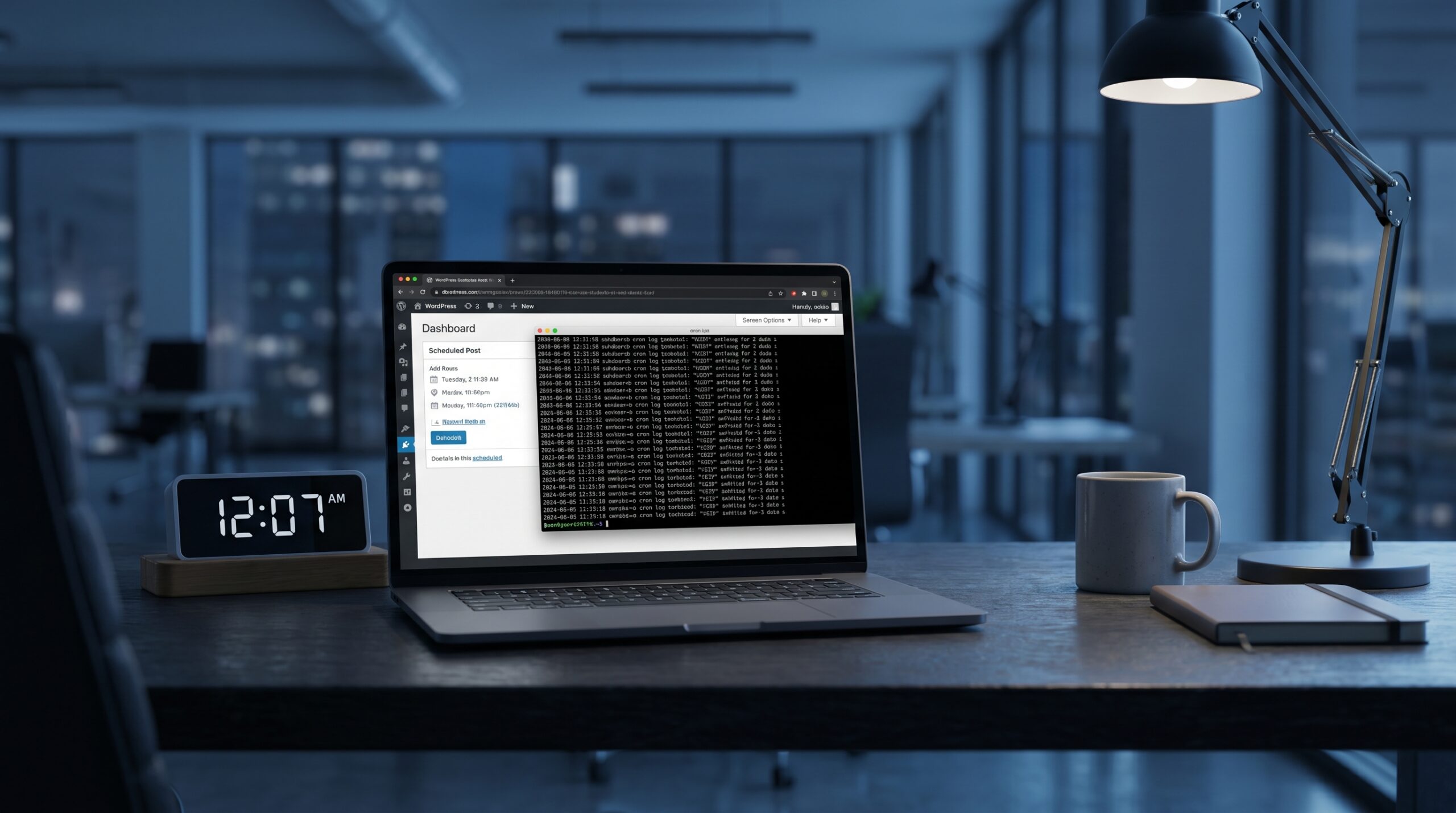
At 12:07 a.m., I was refreshing the homepage for a post that should have gone live at midnight. Nothing. The article was still sitting in “Scheduled,” and the only people awake were me, a noisy ceiling fan, and one very patient cup of chai. Fifteen minutes later, it finally published, but the damage was already done, our newsletter had linked to a URL that looked half-ready, and social traffic hit a page that did not yet exist.
That night forced a simple question: do we treat scheduling as “best effort,” or do we treat it as reliability work? If your site publishes time-sensitive content, product updates, or campaign posts, WordPress cron reliability is not a nice-to-have. It is part of editorial trust.
This guide is the setup I wish I had in place earlier, practical, low-drama, and tested on real WordPress stacks. I will also connect it with systems we already discussed on 7Tech, like service reliability basics, cache behavior under load, and the security baseline in our WordPress hardening checklist.
The root cause is boring, and that is exactly why it hurts
WordPress uses WP-Cron, which is triggered by page requests, not by an always-on scheduler. That means your “run at 00:00” task actually means “run the next time someone (or something) loads a page after 00:00.” On low-traffic windows, that delay can be minutes or hours. On high traffic, multiple overlapping triggers can create queue contention.
In other words, missed schedules are often not a bug in your post editor. They are a scheduling model mismatch.
The fix is not to install five cron plugins and hope one is magical. The fix is to separate concerns:
- Trigger reliability: use system cron for predictable invocation.
- Queue reliability: use Action Scheduler for heavy or bursty background work.
- Operator visibility: use WP-CLI checks so failures are visible before users report them.
The practical reliability pattern
1) Move the trigger from page traffic to system cron
First, disable traffic-triggered cron in WordPress, then run cron from the OS scheduler every minute. This gives you consistent execution windows and fewer race conditions.
// wp-config.php
// Disable request-triggered WP-Cron and rely on system cron.
define( 'DISABLE_WP_CRON', true );
// Optional: keep lock timeout explicit.
define( 'WP_CRON_LOCK_TIMEOUT', 60 );
Now add the system cron entry on the app server:
# /etc/cron.d/wordpress-cron
* * * * * www-data /usr/bin/wp cron event run --due-now --path=/var/www/7tech.co.in --quiet >/dev/null 2>&1

# Useful operator checks
wp cron event list --path=/var/www/7tech.co.in
wp cron event run --due-now --path=/var/www/7tech.co.in
Tradeoff to note: running every minute is usually right for editorial sites, but if you have very heavy scheduled jobs, you may need queue throttling and worker constraints. Reliability is not only “did it run,” it is also “did it run without crushing frontend latency.”
2) Use Action Scheduler for heavier background jobs
WP-Cron is fine for lightweight recurring tasks. For bulk syncs, long API retries, or queue-based commerce tasks, Action Scheduler gives you better batching, logs, and failure visibility. Think of it as a stronger execution layer for WordPress background jobs.
A small example in a plugin context:
add_action( 'init', function () {
    if ( ! as_next_scheduled_action( 'seven_tech_refresh_feed' ) ) {
        as_schedule_recurring_action( time() + 60, 300, 'seven_tech_refresh_feed', [], 'seven-tech' );
    }
} );

add_action( 'seven_tech_refresh_feed', function () {
    // Fetch remote data, validate, then update local cache/transients.
    // Keep each run idempotent and quick.
} );
Why this matters: when tasks are idempotent and queued, retries are safer. If a callback partially fails, reruns do not double-charge users or duplicate records. That same design lesson applies whether you are handling content webhooks or batch metadata rebuilds.
If you are tuning performance at the same time, pair this with frontend safeguards from our performance playbook, because background bursts can still hurt request latency when PHP workers are exhausted.
3) Add a morning runbook, not just config changes
Most teams stop at configuration. Better teams add a tiny runbook: what to check, in what order, and who owns the fix. This turns “random misses” into a repeatable incident process.
- Check overdue events and recurrence health.
- Check Action Scheduler failed actions and error messages.
- Check server cron logs and PHP fatal errors.
- Replay safely, then verify with one known scheduled post in staging.
Troubleshooting: when schedules still drift or fail
Symptom: posts publish late only at night
Likely cause: traffic-triggered cron still active, or system cron not installed on the right host.
Fix: verify DISABLE_WP_CRON, verify cron entry user and path, then run wp cron event run --due-now manually.
Symptom: events are due, but nothing executes
Likely cause: wrong PHP user permissions, broken WP path, or fatal error in a callback.
Fix: run WP-CLI without --quiet, check PHP error logs, and execute failing hook callbacks in isolation.
Symptom: CPU spikes every minute after enabling system cron
Likely cause: heavy callbacks doing full-table scans or external calls without caching/backoff.
Fix: split long jobs into smaller units, add exponential retry logic, and shift expensive tasks into Action Scheduler batches.
Symptom: duplicate side effects (emails, API writes)
Likely cause: non-idempotent callbacks and overlapping runs.
Fix: add dedupe keys, lock semantics, or “already-processed” checks per job payload.
FAQ
1) Is WP-Cron bad, or just misunderstood?
Mostly misunderstood. WP-Cron is convenient and works well for many small sites. It becomes risky when your business depends on precise timing, because execution depends on incoming traffic.
2) Should I disable WP-Cron on every WordPress site?
No. If your site is tiny and schedules are non-critical, default behavior can be fine. Disable it when you need predictable timing, better operational control, or cleaner incident response.
3) Do I need Action Scheduler if I already use system cron?
Not always. System cron solves trigger reliability. Action Scheduler solves queue management and observability for heavier asynchronous workloads. Use both when your task volume or business risk justifies it.
Actionable takeaways
- Set a clear reliability target, for example “scheduled posts publish within 2 minutes, 99.9% of the time.”
- Adopt
DISABLE_WP_CRONplus system cron for predictable scheduling behavior. - Move heavyweight asynchronous work into Action Scheduler, with idempotent callbacks.
- Add a one-page cron runbook with three commands and owner responsibility.
- Review cron and queue failures weekly, the same way you review uptime and security alerts.
References used for this playbook
- WordPress Plugin Handbook: Cron
- WordPress Developer Docs: wp-config.php (DISABLE_WP_CRON, WP_CRON_LOCK_TIMEOUT)
- WP-CLI Docs: wp cron event list
- Action Scheduler Documentation
If your scheduled posts have ever made you refresh the homepage at midnight, you are not unlucky, you are seeing a design default collide with production expectations. Once you treat scheduling as reliability engineering, the misses become rare, and the fix path becomes obvious.
Leave a Reply